Activating Automated Mobile Message Templates
VIDEO OVERVIEW:
STEP 1: Navigate to the Mobile Messages app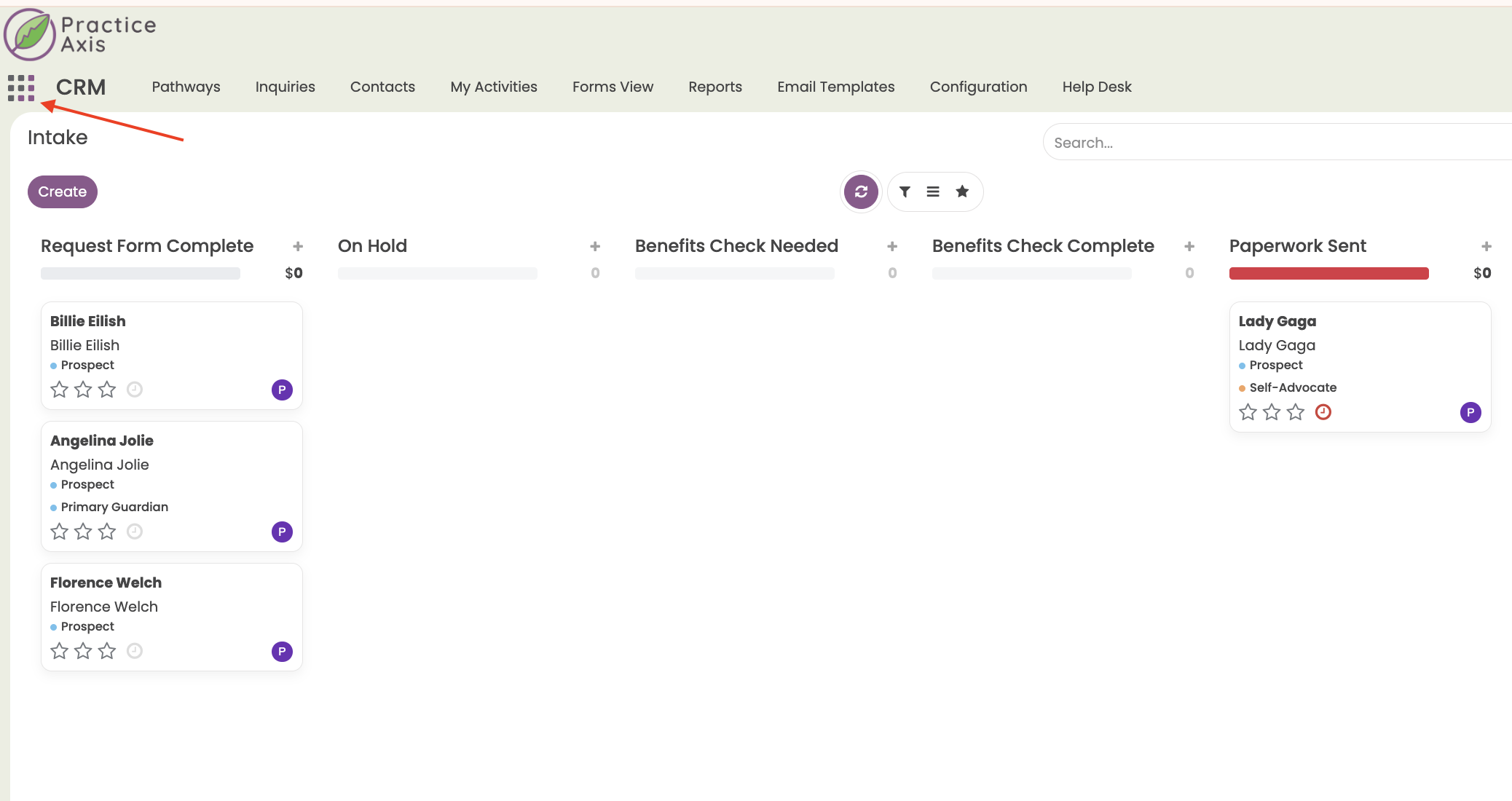
STEP 2: Click on "Templates"
STEP 3: View the list of archived AUTO templates.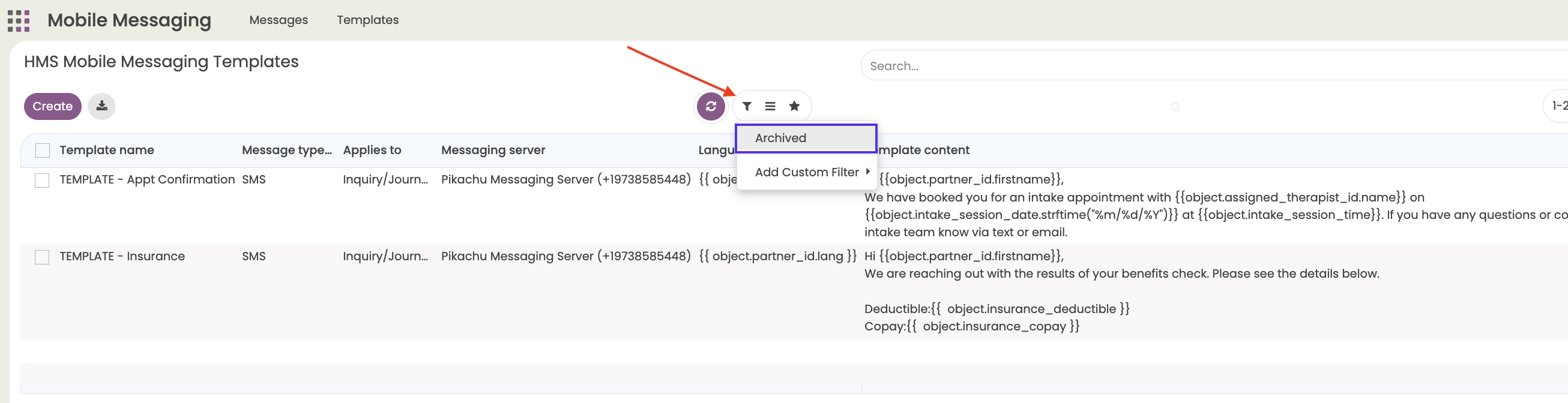
STEP 4: Make any changes to the language of the templates by clicking on the record line for that template and adjusting the information in the "Content" box below.
STEP 5: Once it has been customized to your liking, click to turn on the "Active" toggle.
STEP 6: The Active toggle will now show that it has been turned on, and you can press Save.
Related Articles
6 Pre-Loaded Mobile Messaging Templates
There are six mobile messaging templates that have been pre-loaded into your account during the launch of the mobile messaging feature. Two of these templates are set up to be sent manually from within a client's journey record, and four of them are ...
Creating Your Own Mobile Messaging Templates (Manual-Send Only)
VIDEO OVERVIEW: In addition to the 2 manual-send and 4 auto-send templates that will come pre-loaded into your account, you can create as many Manual-Send templates as you'd like. You can view the six templates that come pre-loaded into your account ...
Mobile Messaging Set Up Guide
How to Add Mobile Messaging to your Practice Axis CRM Fill out this survey to Opt In for Mobile Messaging. We will use the info you provide to register your account and obtain a number with your local area code for all messages you will send/receive ...
Mobile Messaging Opt-Out & Security
Mobile Messaging Opt-Out Considerations Just as all emails sent from Practice Axis are only sent to individuals who have willingly provided their email address to your practice, mobile messages via Practice Axis are only sent to those who have ...
Sending Mobile Messages
STEP 1: Navigate to the specific journey's page STEP 2: You can send a mobile message from within the journey record page in two ways. 1) By clicking on the "Send Mobile Message" button. 2) By clicking on the "Action" dropdown and then selecting ...